Review moments
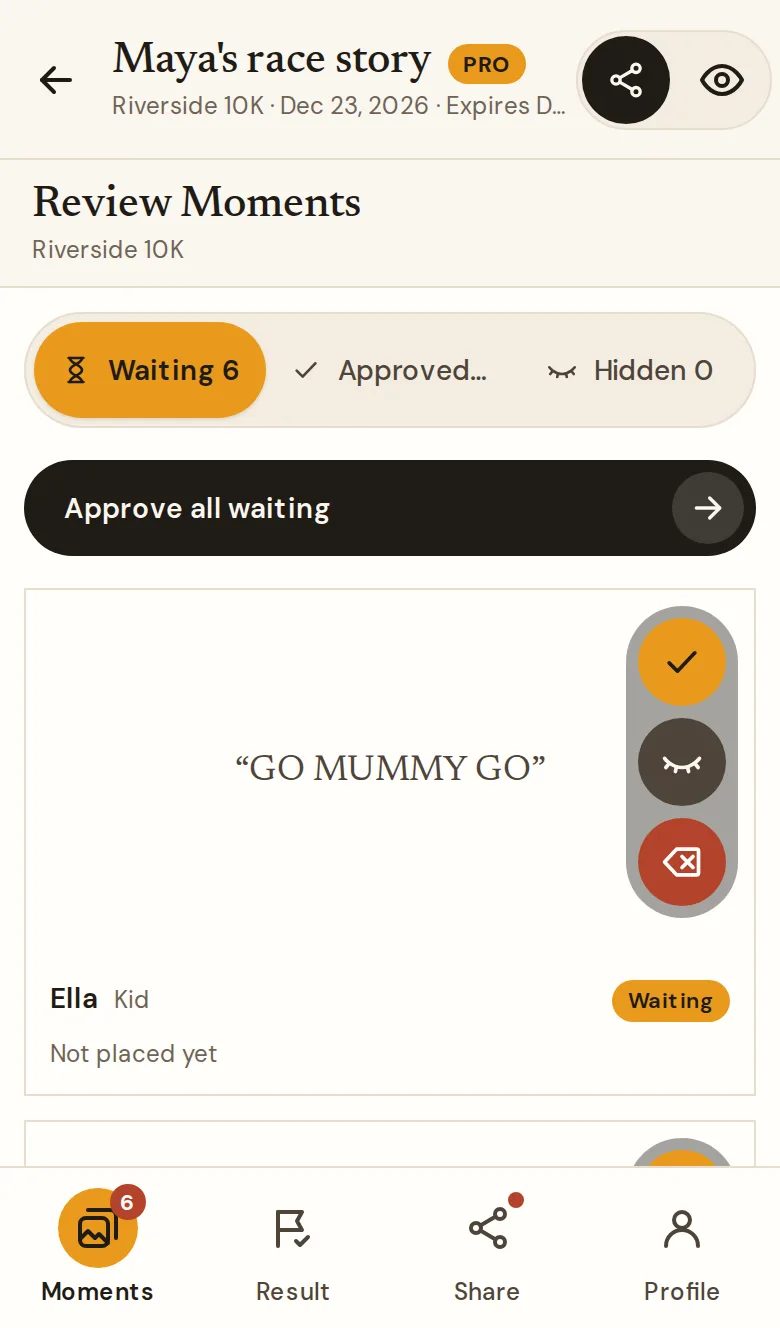
Everything friends add lands in Waiting. Only you see it. The Moments tab lists Review Moments, Cover Photo and Upload Media; tap Review Moments, then tap the pins to learn the screen.
-
Opens the invite sheet again: link, QR code and message.
-
See the story exactly as friends will, before you publish. Only you can see the preview.
-
Three lists. New uploads wait. Approved ones go in the story. Hidden ones stay out, but you can bring them back.
-
One tap to approve everything in the list. Review the pictures first if you want to be selective.
-
On each moment: the tick approves it, the closed eye hides it, the crossed box removes it for good.
Approve, hide or remove
Section titled “Approve, hide or remove”-
Open the Moments tab and tap Review Moments. The list starts on Waiting.
-
For each photo, clip or cheer, choose:
- Approve (tick): it goes into the story.
- Hide (closed eye): it stays out, and you can approve it later from Hidden.
- Remove (crossed box): deleted, with its files.
-
Or tap Approve all waiting.
-
Switch to Approved to see what is in the story.
Place a moment on the day
Section titled “Place a moment on the day”RaceTale places photos by the time they were taken. When a photo has no usable time, or you want to move it, open Where on the day?.
- Tap Where on the day? under the moment.
- Choose Before, On course, Finish or After.
- For On course, drag the slider or type the kilometre.
- Tap Save place.
Pick a cover
Section titled “Pick a cover”The cover is the first photo people see. Go back to the Moments tab, tap Cover Photo and tap one of your approved photos. A Cover tag marks it.
Next: Result and route.