Run your group
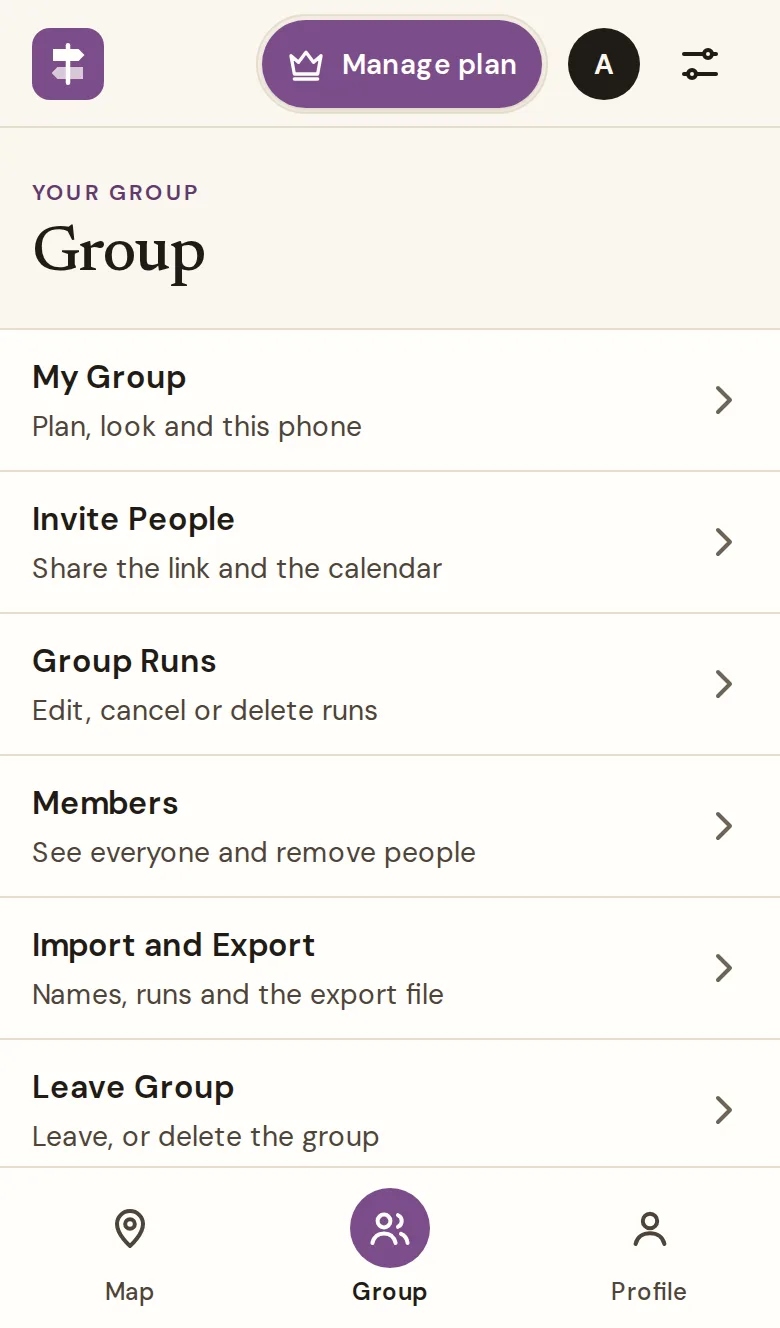
Everything an admin does is on the Group tab. It is a list: tap a row to open that part, and use the back arrow to return.
-
The group's name, its plan and members, "Use your group on this phone" for a new phone (sign in with the same email first), and the invite page logo and colour (Pro).
-
The private link, the QR code, the message and the calendar file.
-
Every run in the group, with Edit, Cancel and Delete.
-
See who is in, and remove people.
-
Your friends list, run import (Pro) and the export file.
-
Leave, or delete the group for good.
Invite people
Section titled “Invite people”Tap Invite People. Share gives the link, the QR code and the message. Make a new invite link closes the old link at once. Close the invite link stops anyone joining until you make a new one.
Runs in this group
Section titled “Runs in this group”Tap Group Runs. Every upcoming run is listed. Edit changes the details, Cancel marks the run as cancelled, Delete removes it for everyone in the group.
Members
Section titled “Members”Tap Members to see who is in. Remove takes someone out of the group. To stop them joining again, make a new invite link.
Invite page and history
Section titled “Invite page and history”Tap My Group and scroll to Invite page and history. On Pro, add your logo (PNG, JPEG or WebP) and pick an accent colour for the page people see when they open your link. Download RSVP history gives a file of who said they were coming.
Leave or delete
Section titled “Leave or delete”Tap Leave Group. Leave group takes you out. Delete this group removes the group, its runs, members and answers for good, after you confirm. If you pay for Pro, cancel it first. Export your data first if you want a copy.